
Tame Your Inbox: A Hotelier’s Guide to Filtering Booking
Emails in Gmail
Category: Hotel Operations & Productivity | Reading Time: 5 minutes | Author: William
💡 Key Takeaways
-
Automate to Eliminate Chaos: Set up Gmail filters to automatically sort, label, and color-code incoming OTA emails to prevent chaotic hotel room allocation.
-
Visual Prioritization: Use color-coded labels (e.g., Red for Cancellations, Blue for New Bookings) to instantly identify urgent revenue management tasks.
-
Sync with Your PMS: An organized inbox serves as the perfect human-centric backup to a robust system like the ABS Property Management System, ensuring hotel data is verified in real-time.
Waking up to an overflowing inbox is a universal dread, but for hotel managers, it’s more than just a minor annoyance—it’s a business risk. In fast-paced hospitality environments across Malaysia, Singapore, the Philippines, and Indonesia, crucial booking confirmations, last-minute modifications, and VIP guest requests compete for your attention alongside newsletters and spam every single morning.
While a robust Property Management System (PMS) like the ABS Property Management System automates the heavy lifting by syncing reservation data directly to your dashboard, your Gmail inbox remains the critical communication hub where the human side of hospitality lives.
If you are tired of playing “find the needle in the haystack” every morning, this guide is for you. We’ll walk through a simple, step-by-step method to build filters that automatically sort, label, and color-code your messages. By the end of this guide on filtering booking emails in Gmail, you’ll be able to glance at your screen and instantly know which messages are new Agoda bookings, which are Booking.com cancellations, and which can wait until after your morning coffee.
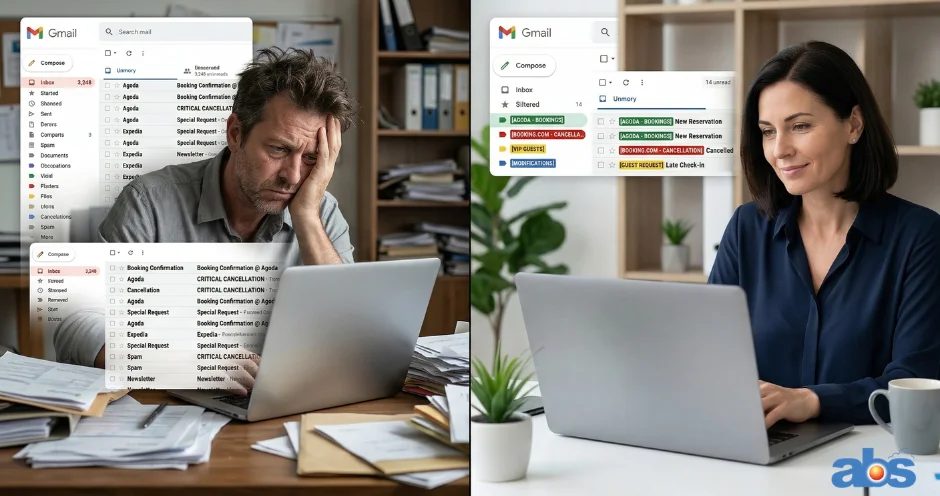
Why You Must Master Filtering Booking Emails in Gmail
Before we dive into the “how,” let’s look at the “why.” Implementing a system to sort booking emails in Gmail isn’t just about neatness; it’s about solving deep operational complexity.
“When front desk operations are too complex, hotel data cannot be seen in real-time. This makes it impossible to arrange and plan rooms accurately. A filtered inbox is your first line of defense against operational chaos.” — ABS Property Management System(PMS)
For reservation teams, an organized inbox guarantees:
1. Reduced Human Error and Overbooking
When your inbox is a mess, the chance of overlooking a booking modification skyrockets. This directly leads to chaotic hotel room allocation and double-booked rooms. Filters ensure important updates are isolated and highly visible.
2. Faster Response Times
When you properly organize your hotel Gmail inbox, you can prioritize urgent emails at a glance. You won’t waste time digging through spam to find VIP guest inquiries or special dietary requests.
3. Peace of Mind Through Real-Time Visibility
Start your day with a clear overview of what needs attention. When your emails are sorted, you can easily cross-reference your communications with your PMS to ensure hotel data is synchronized in real-time. You control your inbox, rather than letting your inbox control you.
Step-by-Step Guide to Automatically Sort Booking Emails in Gmail
Ready to make your workspace smarter? Let’s get started.
Step 1: Open Your Operations Inbox
Head over to Gmail and log in to the account you use for your front desk or reservations. Take a deep breath—soon, this chaotic sea of messages will be a well-organized harbor.
Step 2: Define Search Criteria for OTAs
To build an effective system for filtering booking emails in Gmail, you need to tell the system exactly what to look for.
-
Locate the Search bar at the top of your inbox.
-
Think about the emails you receive most often. Let’s say you want to manage all communications from Agoda.
-
In the search bar, you might type:
from:@agoda.comOR you could use a subject line like"New Booking"if that phrasing is consistent. -
Click the small downward arrow on the far-right side of the search bar to open the advanced search window.
-
Click the button that says “Create filter” at the bottom of this window.
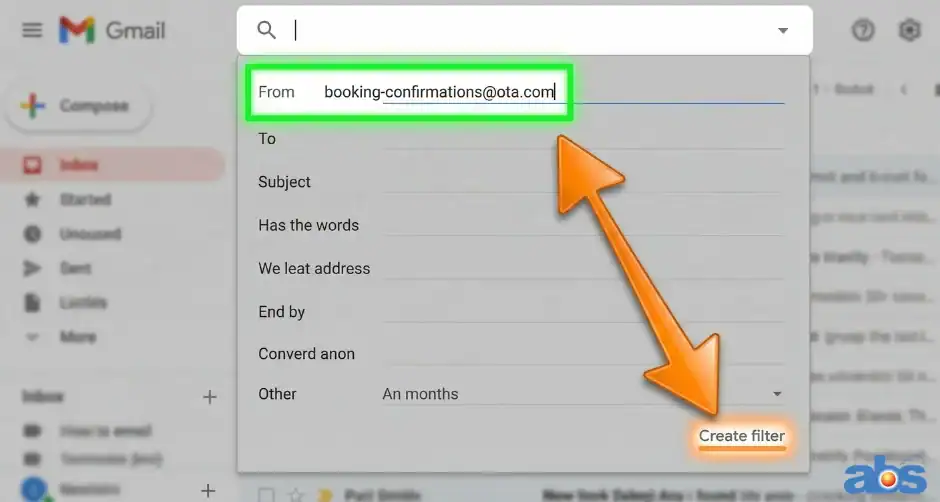
Executing Actions to Organize Your Hotel Gmail Inbox
Now for the fun part: telling Gmail what to do with these specific emails. (For a deeper technical dive, you can also review Google Workspace’s official guide on creating rules to filter your emails.
Step 3: Choose Your Gmail Filter Actions
On the “Create filter” page, you will see a list of actions. Here is how a hotelier can use them effectively:
-
Skip the Inbox (Archive it): Keeps emails out of your primary view to reduce clutter, though they remain accessible via the labels we are about to create.
-
Mark as read: Useful for automated system notifications you need to keep for your records but don’t need to manually open.
-
Star it: Perfect for high-priority items like “Urgent Modification Request.”
-
Apply the label: This is the golden ticket. It automatically moves the email into a specific folder-like category.
-
Also apply filter to matching conversations: Check this box to immediately organize your existing emails, not just future ones.
Creating, Nesting, and Color-Coding Labels
To take your organization to the next level, you need a visual hierarchy.
-
Check the box “Apply the label.”
-
Choose “Create new label” from the dropdown menu.
-
Name your label clearly (e.g., a top-level label called
OTAs). -
Create a sub-label (e.g.,
Agoda - New Bookings) and check the box to “Nest label under” yourOTAslabel.
Pro Tip: Color Coding Once the label exists, customize its color. Hover over the label name in your left sidebar, click the three dots next to it, and select “Label color.”
-
Set “Cancellations” to Red so they immediately catch your eye as a potential revenue management task.
-
Set “New Bookings” to Blue for standard processing.
-
Set “Modifications” to Red Orange to review changes carefully.
Managing and Updating Your Hotel’s Gmail Filters
The only constant in the hotel industry is change. Online Travel Agencies (OTAs) occasionally change their automated email formats, and your hotel might partner with new channels.
Step 4: Editing Filters as OTA Partners Change
To edit or delete your filters:
-
Click the Settings gear icon in the top right.
-
Select “See all settings.”
-
Navigate to the “Filters and Blocked Addresses” tab.
-
Here, you can edit the criteria (e.g., updating an OTA’s sender email address) or delete filters you no longer need.
Note on Filter Order: Gmail processes filters from the top down. If you have a general filter (e.g., “All Agoda emails”) and a specific one (e.g., “Agoda – Cancellation”), ensure the more specific one is sorted above the general one so they trigger correctly.
Seamless Hotel Operations: Integrating Gmail with ABS PMS
By investing just a few minutes in setting up these filters, you reclaim control over your digital workspace. Moving forward, as you pour your morning coffee and open your laptop, you won’t be met with chaos. You will see a neatly organized inbox where red labels signal cancellations to reprocess, blue labels highlight new bookings, and green labels show pending guest requests.
However, an organized inbox is just step one. To truly solve the problem of chaotic room allocation and ensure your hotel data is synchronized in real-time, your inbox needs to be backed by a powerful engine.
Ready to fully automate your front desk? Discover how the ABS Property Management System can automatically sync these bookings, update your inventory across all OTAs, and streamline your entire operation for over 1500+ successful hotels.
👉[Click Here to Arrange a Free Demo and Contact Our Software Consultant Today] https://bmssolution.com.my/book-demo
Frequently Asked Questions (FAQ) About Filtering Booking Emails
Q: Can I filter emails by specific room types or guest requests? Yes. In the advanced search criteria (Step 2), you can use the “Has the words” field. If you want to flag emails mentioning a “Suite” or “Late Check-in,” simply add those exact phrases to your filter criteria and apply a specific “Special Request” label.
Q: Will filtering booking emails in Gmail accidentally delete them? No. Filtering simply organizes your emails. Unless you specifically check the box that says “Delete it” during the filter creation process, your emails are safe. Choosing “Skip the inbox” merely archives them into your designated label folders for safekeeping.
Q: How many labels can I create in Gmail for my hotel operations? Gmail allows you to create up to 5,000 labels. This is more than enough to create nested labels for every OTA, corporate client, and internal department your hotel manages.
Q: What if an OTA changes its notification email address? Your filter will stop catching them until you update it. If an OTA changes its sender address (e.g., from no-reply@ota.com to bookings@ota.com), simply go to Settings > Filters and Blocked Addresses, click “Edit” on your existing filter, and update the “From” address to the new one.